
We have three options for teleconferencing. The Sondheim, the Plotter Room, and the TV Cart.
The TV Cart is now set up with a computer that automatically connects to Zoom Rooms. To start it up, simply plug in the TV and the connected PC (they should be using the same power strip), and the PC will automatically turn on and launch the Zoom Rooms app. If you don't see this, confirm that the TV input is set to "PC".
The Sondheim and the Plotter Room are set up with tablets with the Zoom Room app open and enabled and ready for use.
When scheduling a meeting where you'd like to reserve the Zoom Room,
How Do I Connect My Meeting to the TV?
You have 2 options here:
- Automatically join the meeting at the scheduled time. *To do this, you must be using a licensed zoom account*
-
- When scheduling your zoom meeting, add "TV Cart" as an alternate host to your meeting. (Note: If you're having trouble adding, try doing it through the web browser instead of the zoom desktop app). Then at the scheduled meeting time, the TV will automatically launch your zoom meeting. It will also display the upcoming meeting on the screen before it starts.
- You'll also want to make sure that in your meeting setup, the Video and Microphone defaults to "On" for participants.
- If you don't have a licensed account, reach out to IT and ask if one of the generic Signature licensed accounts is available to use.
-
- On an ad hoc basis:
-
- To do this, you'll need to make sure you're using a zoom account with your sigtheatre email address.
- You'll need the Zoom Room Controller app. You can get this app on your phone by just searching for "Zoom Rooms Controller" in your app store. Or you can also get the controller on your computer with this link (make sure you're logged in to zoom with your sigtheatre email first):
- Once in the controller, enter the shared key displayed on the TV to control the room.
- You should then see in the controller options to start a meeting or join a room, and you can enter the Meeting ID there.
- If you have a scheduled meeting, you can also join from the Zoom application
- Launch zoom, and on the right where it displays your upcoming meetings, click the 3 dots next to the meeting name, and then choose "join from a room"
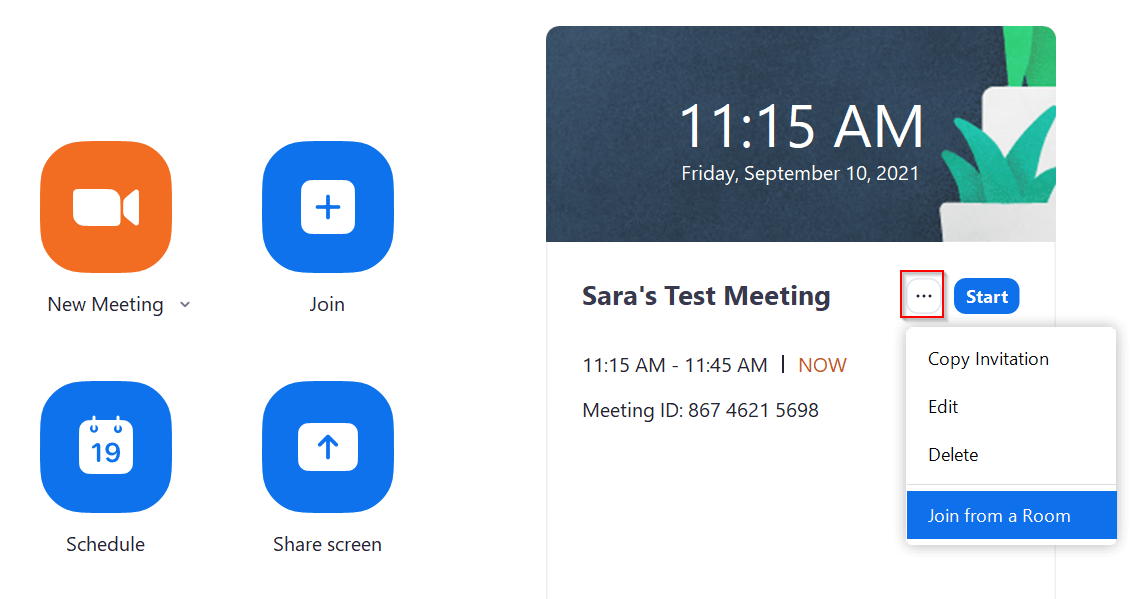
- It will then prompt you for the sharing key, which can be found on the TV screen.
- Launch zoom, and on the right where it displays your upcoming meetings, click the 3 dots next to the meeting name, and then choose "join from a room"
-
Comments
0 comments
Article is closed for comments.