
Here are some things you might need while working from home:
Email:
Teams:
You can download the desktop app if you like, or you can just use the web version, totally up to your preference.
Office Apps:
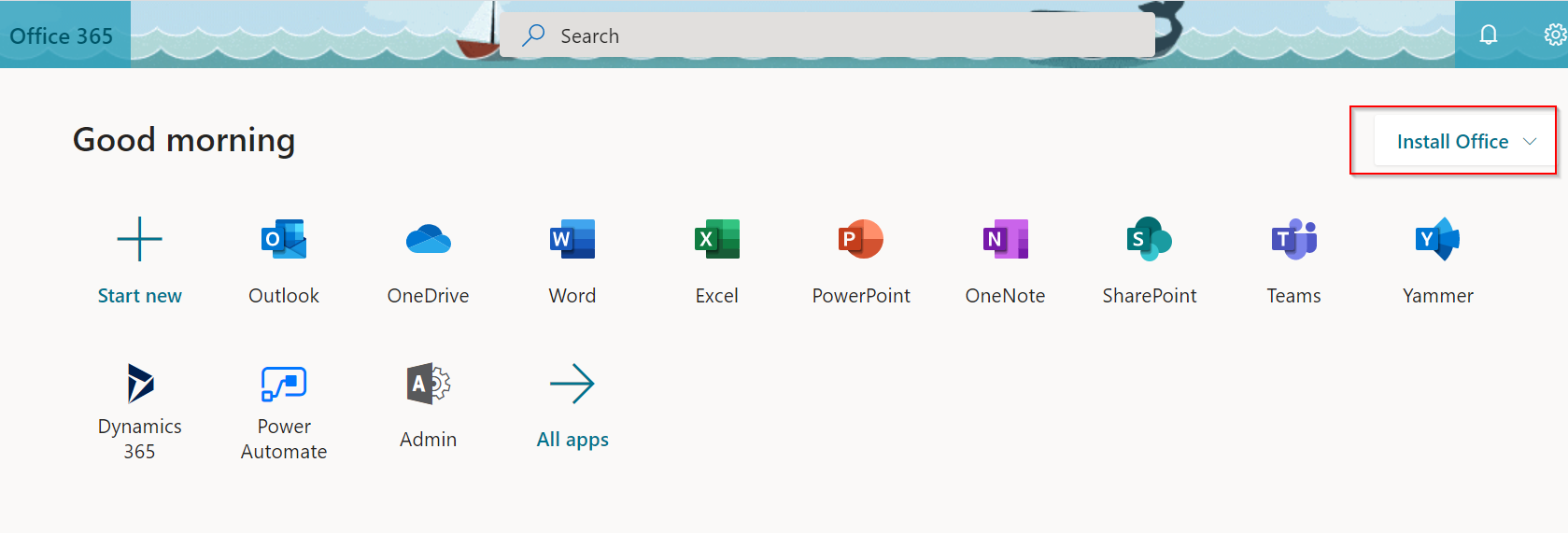
For the most part, you should be able to use the web apps for any office applications, but if you prefer the full desktop version you can download it to your personal computer by going to portal.office.com and there's a link to install in the top right of the page:
Phone:
You can access Vonage by downloading the desktop app or mobile app:
For Macs: https://m.vona.ge/getMAC
For Windows: https://m.vona.ge/getWindows
For iPhone: https://apple.co/2DRjLpz
For Android: http://bit.ly/2zvXk4F
Your username is your Sig email address, and then your password you set up when your first logged in (not connected to any other password). If you've forgotten, there's a forgot password link to reset.
Your computer will need to have microphone capabilities, or you'll need to have a headset plugged in in order to receive/make calls if you're using the desktop version.
Tessitura:
RAMP website to log into Tessitura: https://e01hosting.tessitura.com
If you haven't installed Citrix yet on your computer:
- For Windows: when you first log in there will be a page asking to "Detect Receiver". Click through that and then choose download and follow instructions from there. Then when you log in it should detect the receiver you just installed, but if not just choose the option that says "already installed".
- For Macs: You'll need "Citrix Workspace" rather than "Citrix Receiver". You can find instructions on how to do so here: https://docs.citrix.com/en-us/citrix-workspace-app-for-mac/install-uninstall.html, and you can ignore the uninstall Receiver part if you've already got that. You just need to have Workspace installed.
For mobile tokens, links to download the app are here (or just search in your app store for "Deepnet Mobile ID"
- App for iPhone: https://itunes.apple.com/us/app/deepnet-mobileid-ooba/id898300378#?platform=iphone
- App for Android: https://play.google.com/store/apps/details?id=com.deepnet.andmob5
- Download the app
- Add a new token with Manual Entry
- Name it whatever you like, and then fill in the Serial and Seed numbers given to you by Sara
Zendesk (for box office)
https://sigtheatre-boxoffice.zendesk.com/
And then the login will be your regular Windows login.
Printers:
For PCs: To be able to print to the fake printer in Tessitura to print tickets for exchanges:
- Connect to the VPN using the instructions here: Connecting to the Signature Theatre VPN
- Add a printer on your computer
- You're looking for \\arl-thtr-prt-01\Null Ticket Printer. If you don't see it: Click "the printer I want isn't listed" and then select "Select a shared printer by name and type in "\\arl-thtr-prt-01\Null Ticket Printer"
- Log back in to Tessitura and you should be able to print to the null printer
For Macs: Unfortunately the ticket printers don't play nicely with Macs, so if you run into a situation where you need to print a ticket, reach out to someone with a Windows computer (Sara or Erin are good to start with) and they can print the ticket for you.
Comments
0 comments
Article is closed for comments.