
Whenever you schedule a meeting or event for a shared space in the building (the Sondheim, the Lobby, the MAX, etc), you need to add the location to your meeting request in Outlook. It's important to correctly reserve the space so that everyone else can see when meetings are happening and when spaces are occupied. The same also applies for shared resources that can move around, like the TV cart or the Van.
Jump to:
How do I add a room to my meetings?
List of bookable rooms and resources
View shared calendars:
How do I add a room to my meetings?
You can add a room or resource to your meetings in the same way you would add additional people. All the rooms and resources available all have their own calendar in outlook. For locations, you would add the room to the "location" field of your meeting request: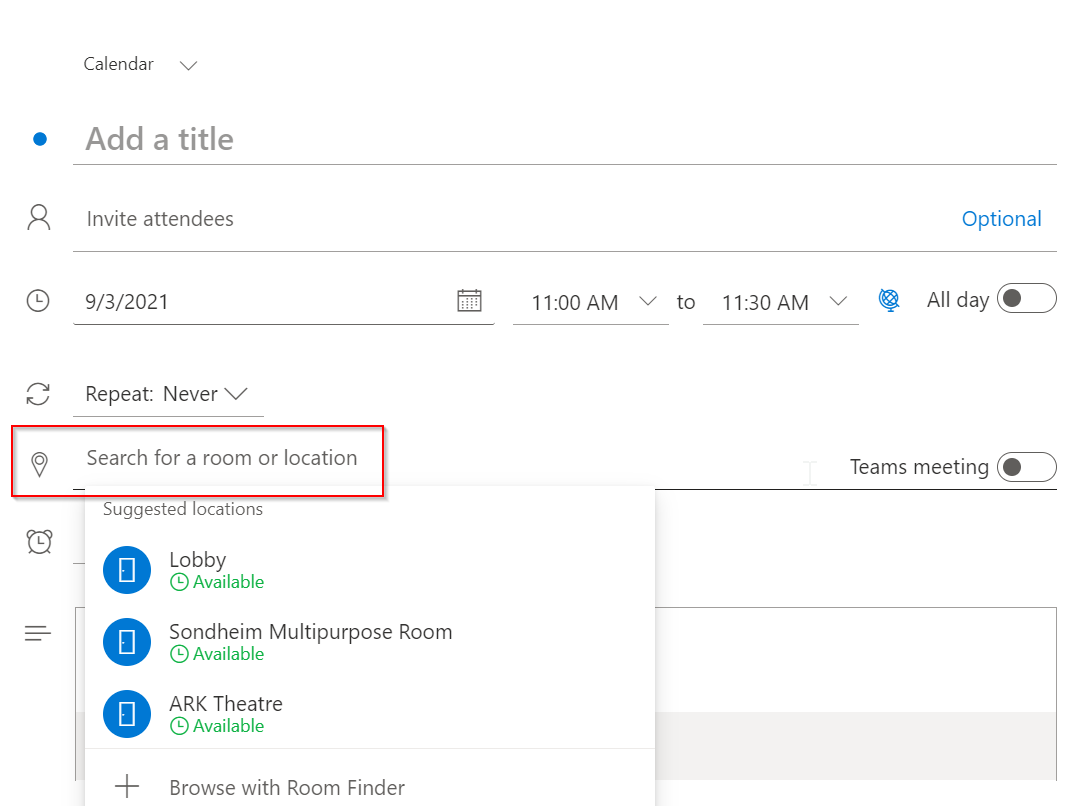
NOTE: Don't just type "The Sondheim" into the location field, as that will then only show up for the people on your meeting request. You need to make sure you select the Sondheim calendar from the room list.
Bad: 
Good: 
It should show up as blue like the above if you're using the web application, or underlined and automatically added to the attendees list if you're using the desktop version: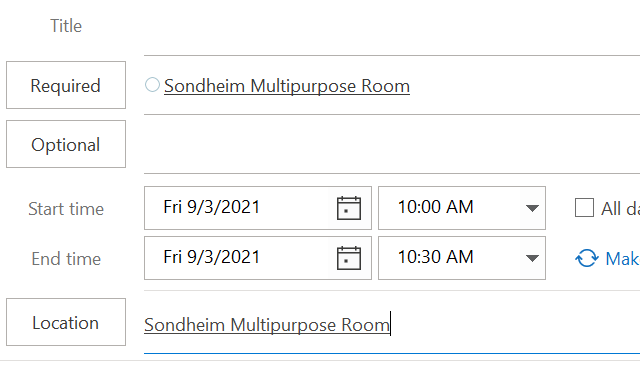
You should also see suggested locations appear in a drop down when you start to type in the "location" field, and you can click on "browse with room finder" if your location isn't listed: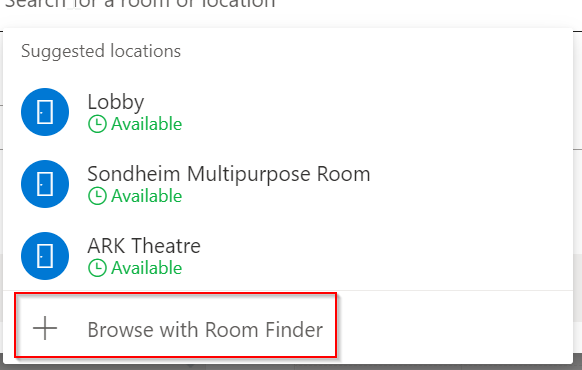
For shared resources (like the TV cart or the Van that aren't "locations"), you just need to add the desired calendar to your meeting attendee list.
**Important Note** You must receive an "Invite accepted" email from your chosen resource in order to officially be on the calendar. If you get back an "invite declined" email, you have not actually scheduled the room/resource and you'll have to choose a different location.
List of bookable rooms and resources
Rooms
- ARK Theatre
- Lobby
- MAX Theatre
- Shen Rehearsal Room
- Sondheim Multipurpose Room
- Zickler Rehearsal Room
Resources
- The Van
- TV Cart
How can I see when a room is available?
Windows desktop version:
At the bottom left of your outlook screen, select the calendar icon: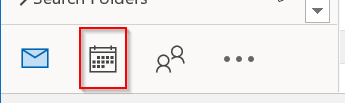
Under the "Home" menu, select "Add Calendar":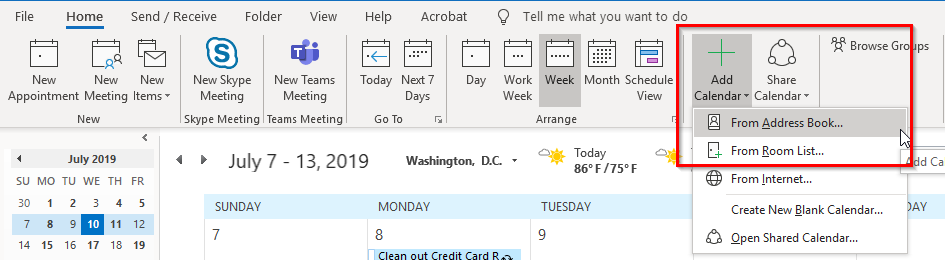
For a room you can choose "From Address Book" or "From Room List" (to see another person's calendar choose Address Book).
Search for the name of the calendar you'd like to add: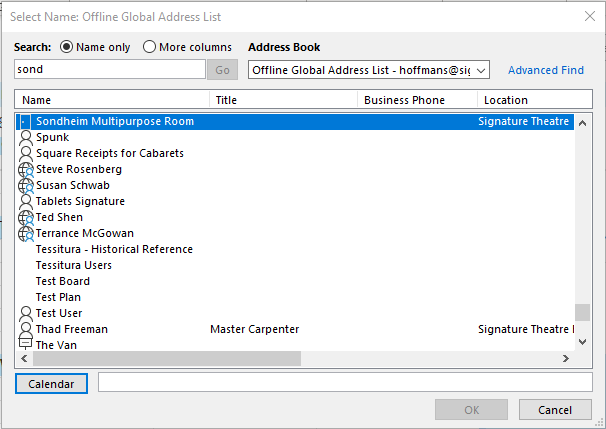
And then click the "Calendar" button, and then "Ok". You'll then see the added calendar appear next to yours on the calendar page: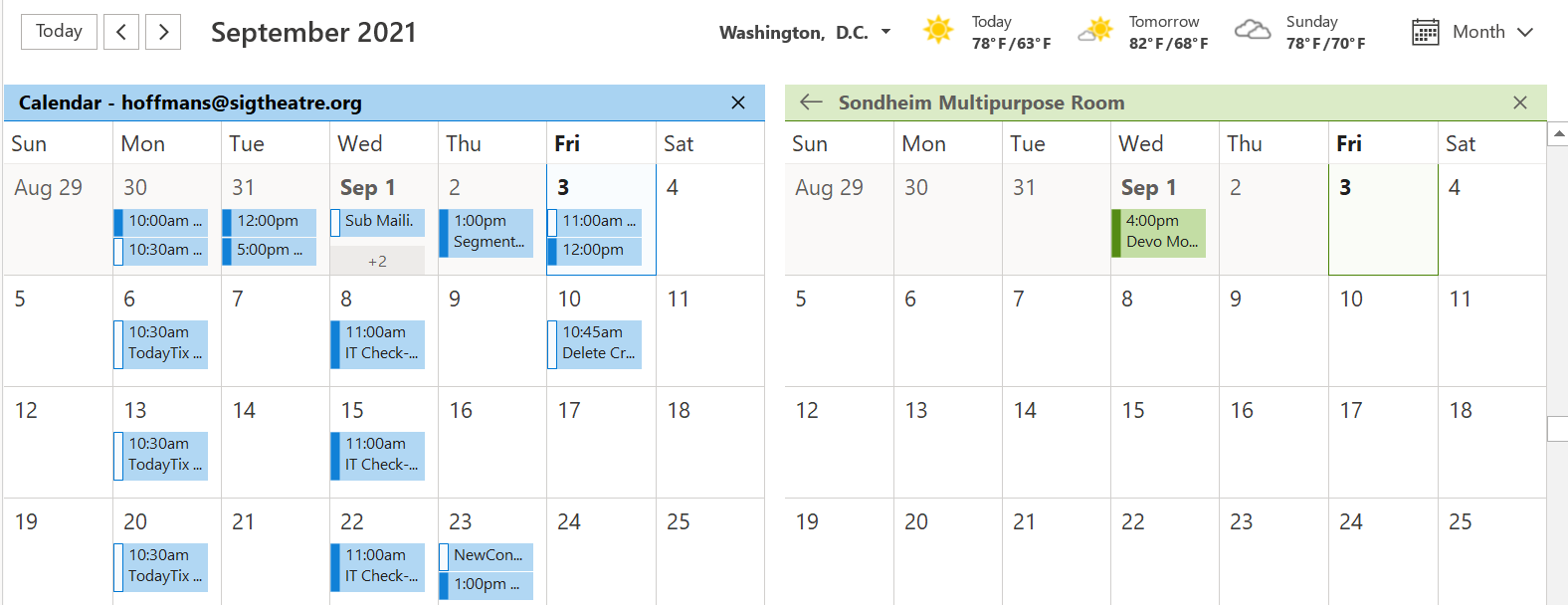
If you would like to see the calendars appear on top of each other, click the little arrow next to the second calendar's name: 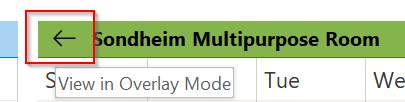
And it will show both calendars events together in different colors: 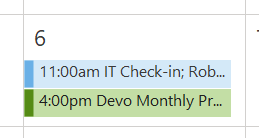
To switch back to the separate view, click the arrow again next to the shared calendar's name:
You can view more than 2 calendars at once as well. Just add another calendar the same way you added the first, and you can choose to show them all separate, or have just some be separate, whatever combination you would like. In the screenshot below, my calendar and the Sondheim are overlaid together, but the Lobby is separate to the right:
Once you've added a calender, it should appear along the left side of your window, and you can check or uncheck to view it as needed: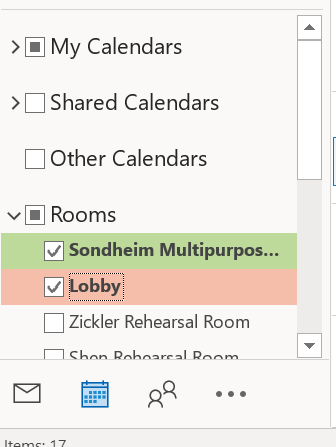
Rooms will show up under "Rooms", but other people's calendars or the resource calendars will show up under "Shared Calendars"
Outlook Web
Along the left side bar, click the calendar icon:
Choose "Import calendar" from the left pane: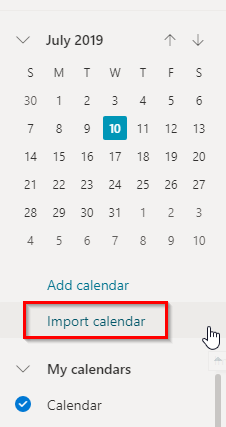
Select "From Directory" and then search for the name and click "add":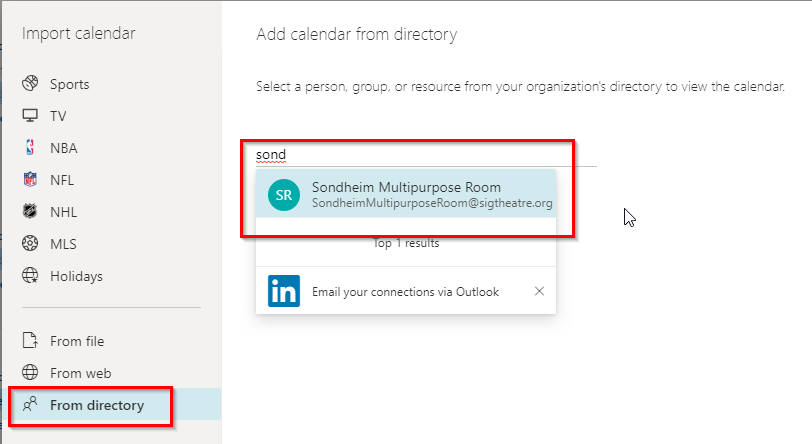
You'll then see the added calendar appear overlaid on yours in a different color.
To see the calendar's separately, up towards the top right, click the "Week" button (or Month or Day, depending on your calendar settings). Then select "Split View", and that will separate out the calendars. 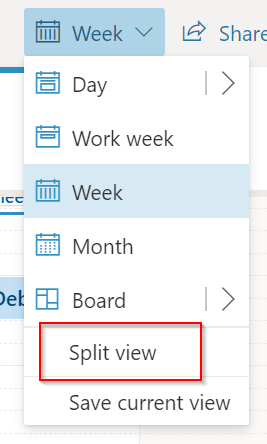
Once you've added the calendar, it will appear along the left side of the window, and you can select and unselect to view as needed: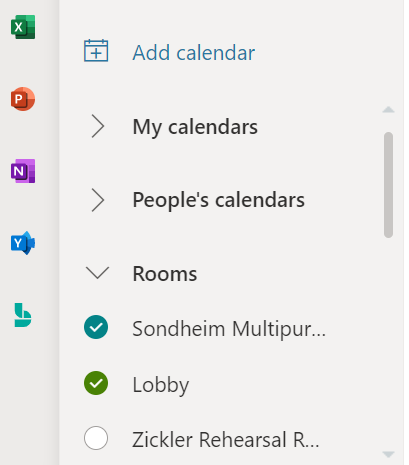
Rooms will show up under "Rooms", and other people or resource calendars will show up under "People's Calendars".
Mac desktop version:
At the bottom right of the navigation bar, click "Calendar"
On the "Organize" tab, click "Open Shared Calendar"
Search for the name of the calendar you're looking for. Select the calendar and click "Open".
Once you've opened the calendar, it will appear in the left navigation pane under "Shared Calendars", and you can select or unselect to view as needed.
Comments
0 comments
Article is closed for comments.