
To remove the cover page that automatically prints with each of your print jobs:
1. Go to Printers & Scanners (Click the windows button in bottom left of your screen and just start typing "printers & scanners")
2. Select the "FindMe Printing" and choose "Manage"
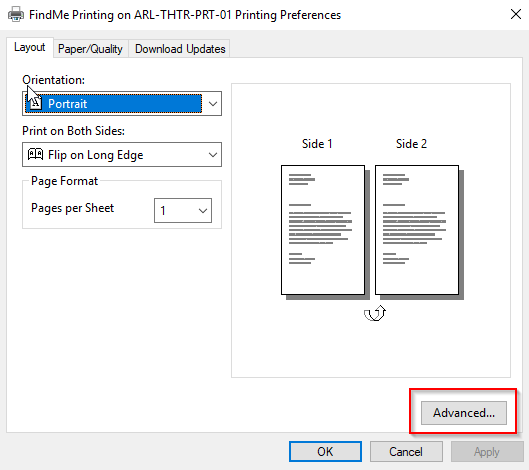
3. Choose Printing Preferences
4. Click Advanced:
5. Then the very last option will say "Job ID". Click the setting and switch it to "Disable Job ID".
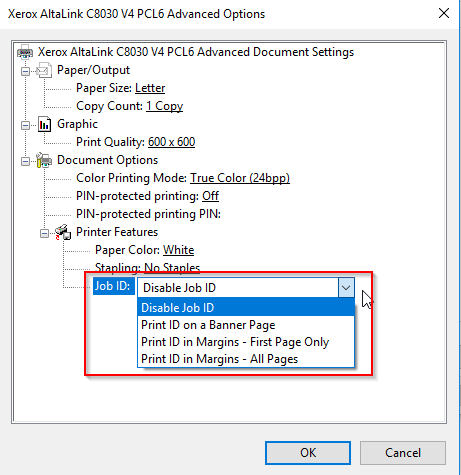
No more extra cover page!
Comments
0 comments
Article is closed for comments.