
Less is More
We recommend only syncing folders that you access often, and only if File Explorer is your preferred method of accessing files. As much as possible go through Teams or SharePoint, because the more files you sync, the longer and slower your syncing will go and the more space it’ll take up on your computer.
The AutoSave Canary
Keep AutoSave on for Office products like Word or Excel. Whether you opened the file from Teams or File Explorer, check the top left corner of the page and make sure AutoSave is set to on: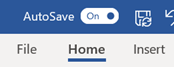
This will help avoid any sync/saving errors, especially if multiple people are working in the same document.
When In Doubt, Share
Any files/folders/documents that have anything to do with work, save somewhere within Teams folders, rather than your own OneDrive/My Documents. It's way easier to share and retrieve files when they're in a shared place; much harder to get them out when they're only accessible by one person.
Don't Double-Dip
When you are syncing folders to your computer, make sure you're not trying to double sync any one folder. For example, let's say in the Signature Theatre Staff > General site, I only want to sync the Letterhead folder. Great, I’ll go to that folder and select sync: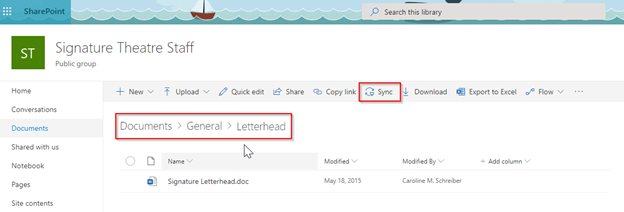
But then later I want to sync the whole folder of SigTheatre Staff > General. But since that includes the letterhead folder, and I’m already syncing that, I’m going to end up with 2 of the same folder in my File Explorer, which could cause some problems, and if nothing else just confusion for myself. To avoid this, before you start syncing a new folder, make sure you're not already syncing a sub-folder, or that you aren't already syncing that folder somewhere else. Basically there should be no repeats of any folders here (either main or sub-folders):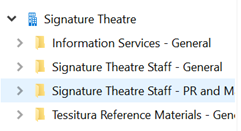
Comments
0 comments
Please sign in to leave a comment.