
When you share a document, you're sending the actual file location so that the other person is viewing and editing the same file you are. If you make any changes, the receiving person will be able to see those changes with the same link.
If you send a document as an attachment in an email, you're only sending a copy of the original. Any changes you make will not be reflected in the receiver's copy and you'll have to resend the document for them to see them. With a copy the recipient cannot make changes to the original document either, which could be good or bad depending on why you're sharing it.
To share a document from within Teams or SharePoint, choose "Share" or "Copy link":
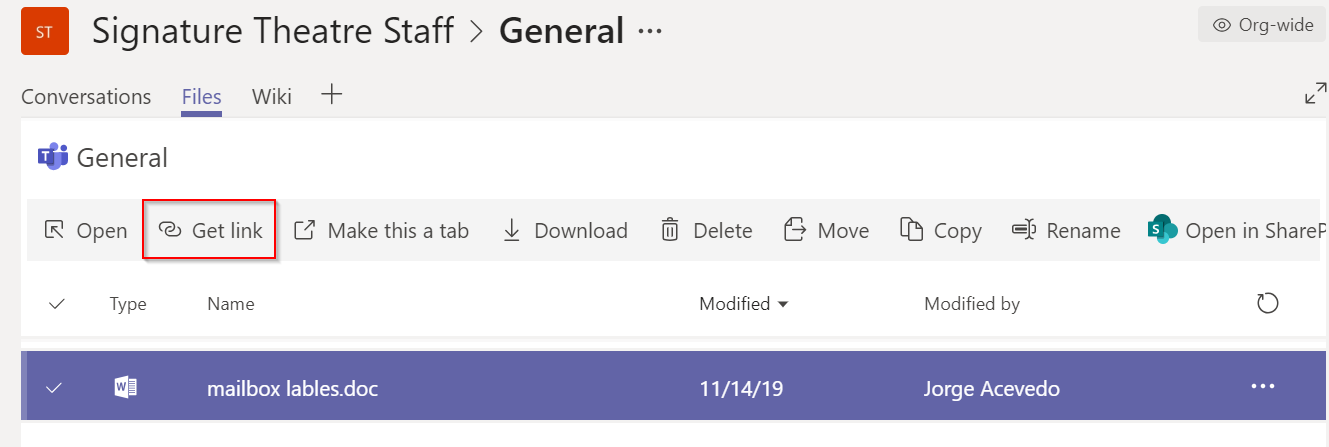
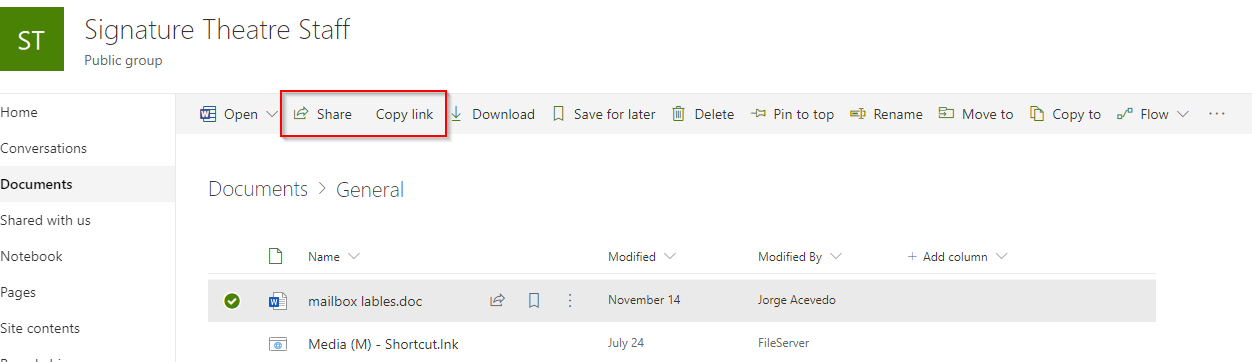
If you're already within a document, click the Share button at the top right of the page: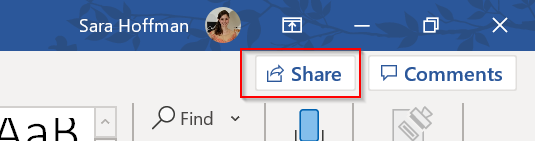
And if you're in File Explorer, right click the file and choose Share: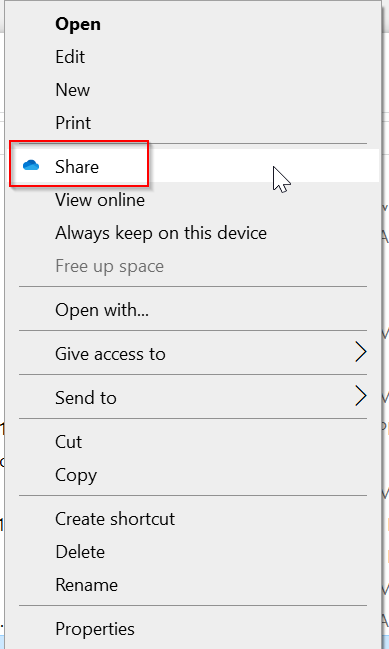
The share option will let you send the file directly to a list of emails, or you can copy a link to paste in an email to someone: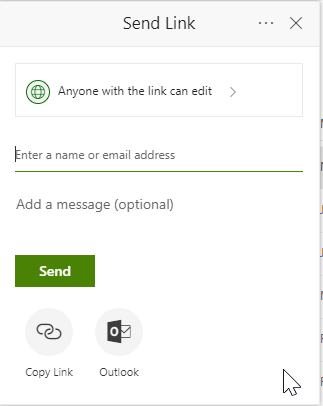
You can also set permissions about how the recipients can interact with the document.
**Be aware when copying a link to a document from Windows File Explorer. You don't want to use the file path for your local computer, which would look something like this:
Since no one else has access to your locally cached files, they won't be able to access that link. Make sure to right click the file and choose "Share" instead.
Comments
0 comments
Please sign in to leave a comment.