
You only need to set up syncing once on a computer for each main folder that you want to sync. Once you’ve set up the sync relationship, it should continue to do it automatically. These files show up in the left pane in File Explorer under the Signature Theatre label:
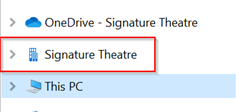
You cannot select to sync to a different location.
We recommend only syncing folders that you access often, and only if File Explorer is your preferred method of accessing files. As much as possible go through Teams or SharePoint, because the more files you sync, the longer and slower your syncing will go and the more space it’ll take up on your computer.
If you’ve turned on OneDrive sync to your computer, you’ll probably have noticed these two options that appear in your file explorer:
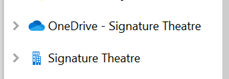
Why are there 2? What’s the difference? The short version is that “Signature Theatre” is like the old Shared Drive and it’s the files that are available in Teams. That’s the stuff that multiple people can access. “OneDrive-Signature Theatre” is like the old H Drive. Those folders are only accessible to your user. But why does it also say Signature Theatre? You can have multiple OneDrive accounts connected to the same computer, so this indicates that this location is from your Signature Theatre account. Can I rename it to something less confusing? Nope.
How do I set up the sync relationship? See instructions this article: How to Sync Files from Teams
Comments
0 comments
Please sign in to leave a comment.