
If you decide the sync life isn't for you, or you just no longer need one of your folders to always be syncing, you can stop it.
1. Open OneDrive by clicking on the little blue cloud in the bottom right of your taskbar.
2. Select "More", and then "Settings"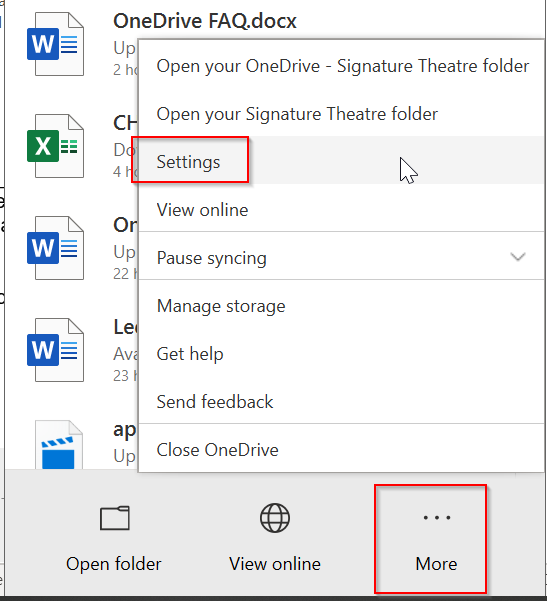
3. On the Account page, it will show you all folders that are currently syncing (it might take a minute or two for it to populate):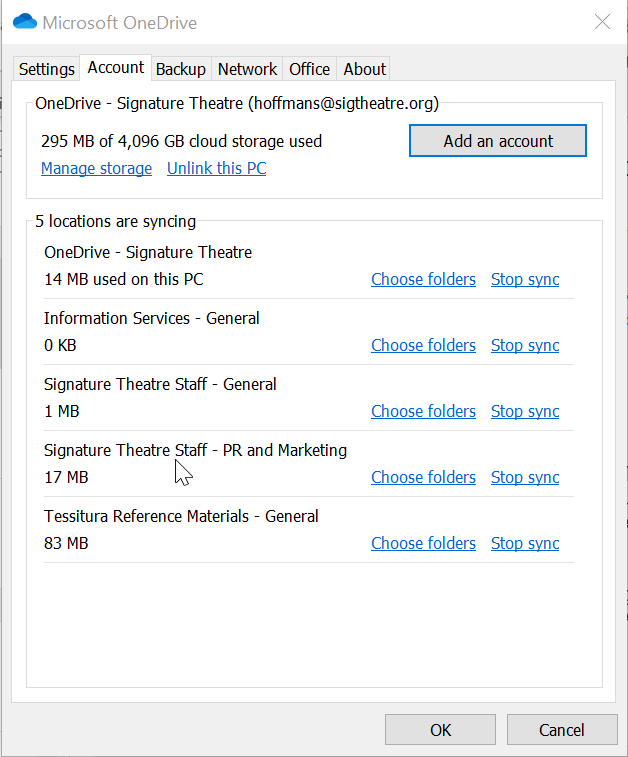
4. Then for whichever folder you'd like to stop, just select "Stop sync"
You'll still see the folder in your File Explorer, but the status column next to all folders and files will be gone, as it is no longer actively syncing.
Comments
0 comments
Please sign in to leave a comment.