
Files that were previously on the shared drive have now moved over to Teams. You can access your files directly though Teams, or on SharePoint. The files can also by synced to your computer's File Explorer, which will look a lot more like the familiar S: Drive. Here's how to set that up:
Syncing Files/Folders:
1. Open Teams and navigate to the "Teams" section from the left side panel:
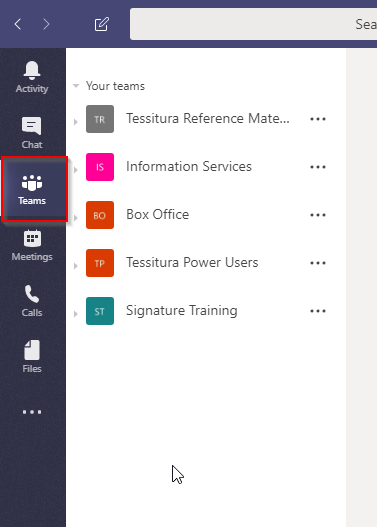
Any team that you have been added as a member of will appear here.
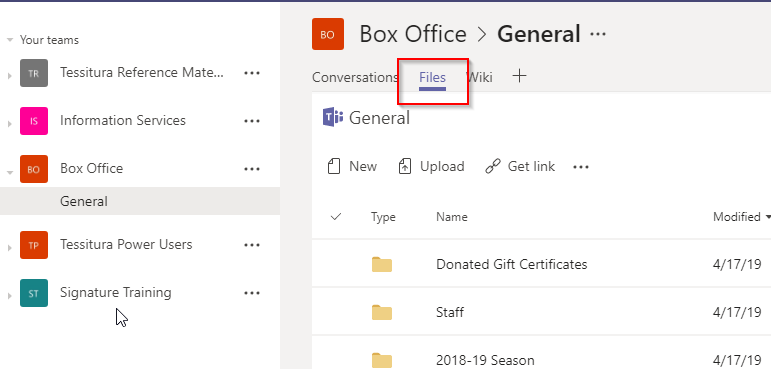
2. Select your desired team and choose the "Files" option:
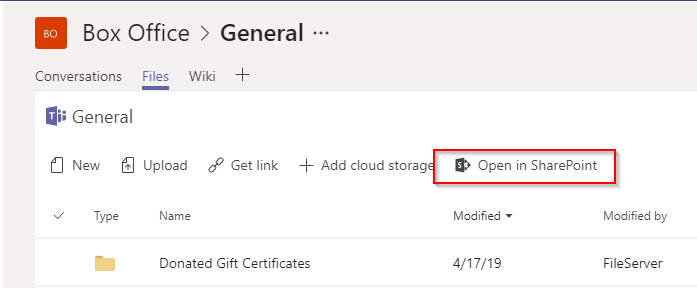
3. Select "Open in Sharepoint"
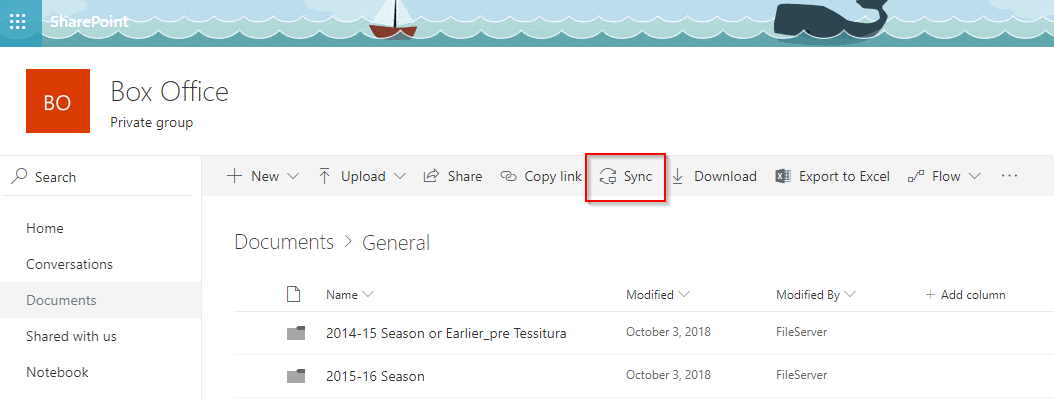
4. SharePoint will open in your browser. From there, to get the files to appear in your File Explorer, select "Sync" at the top:
4a. You might see this popup:
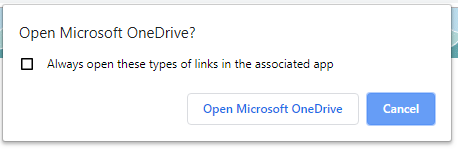
If you do, select to Open Microsoft OneDrive
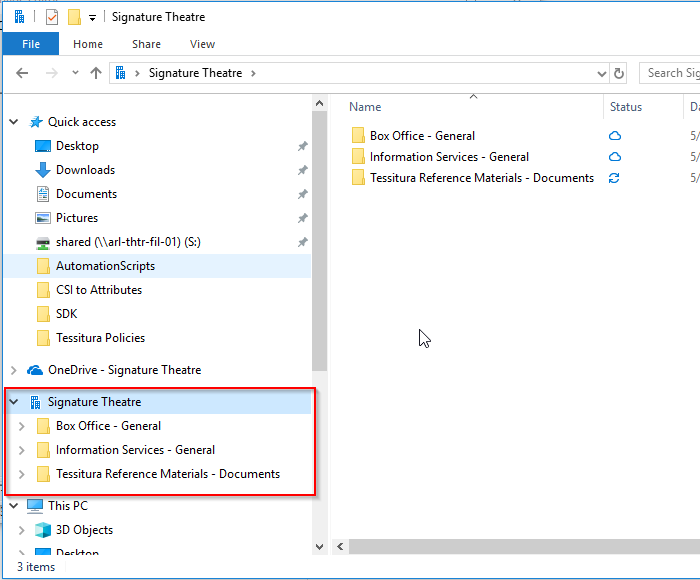
5. Then when you open File Explorer, you'll see your teams files available under "Signature Theatre" (with the little building symbol)
Opening and Saving Files:
You can open files from any of the three locations: file explorer, SharePoint, or Teams. If you open a file from SharePoint or if someone sends you a link to edit, it will automatically open in the online version of (for example) Excel. If that's not sufficient or you just prefer the full version, you can still open the file in the fat client:
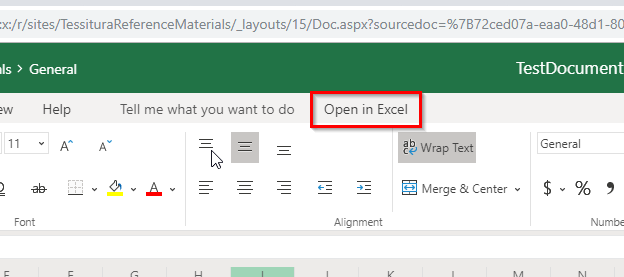
You don't have to sync the whole folder the file lives in just to access it. You can simply open that one file in the full version of Excel and Autosave will turn on automatically.
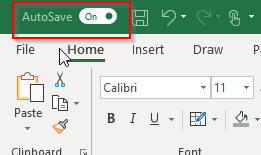
You don't have to "download" a file, make changes, and then upload it again. Just open it, make your edits, and when you save it will save to its SharePoint location.
Comments
0 comments
Please sign in to leave a comment.